
Self Hosted Servers
Introduction
Self-hosting is a way for users to host Dune Awakening Worlds (called “battlegroups” in this document, Sietches are “servers”) on their own machines and connect to them. Hosts will be able to tweak various settings in configuration files to change the behavior of the game servers to their liking.
In this page we’ll help you get set up but the current process requires some technical knowledge. If you have follow up questions you can always come to our official Discord Server.
Requirements
-
A Windows machine that has Virtualization and HyperV enabled (Windows Pro is required for this)
-
20GB of memory, depending on how many servers the battlegroup will have
-
A CPU that supports AVX2 instructions
-
Access to the network’s router to apply port forwarding if players outside the network are to join the battlegroup
-
A token generated from our account page https://account.duneawakening.com/
-
You will need to port forward the following ports:
- 7777-7810 UDP for the game servers.
- 31982 TCP For RMQ
Initial Setup

After enabling hardware virtualization on their BIOS and turning the HyperV feature on, users will be able to download the Dune: Awakening Self-Hosted Server product on Steam and begin the process. In the program files you will find a battlegroup.bat file. Running it as administrator will show various options for setting up and running a battlegroup. Initially the only available option will be initial-setup:
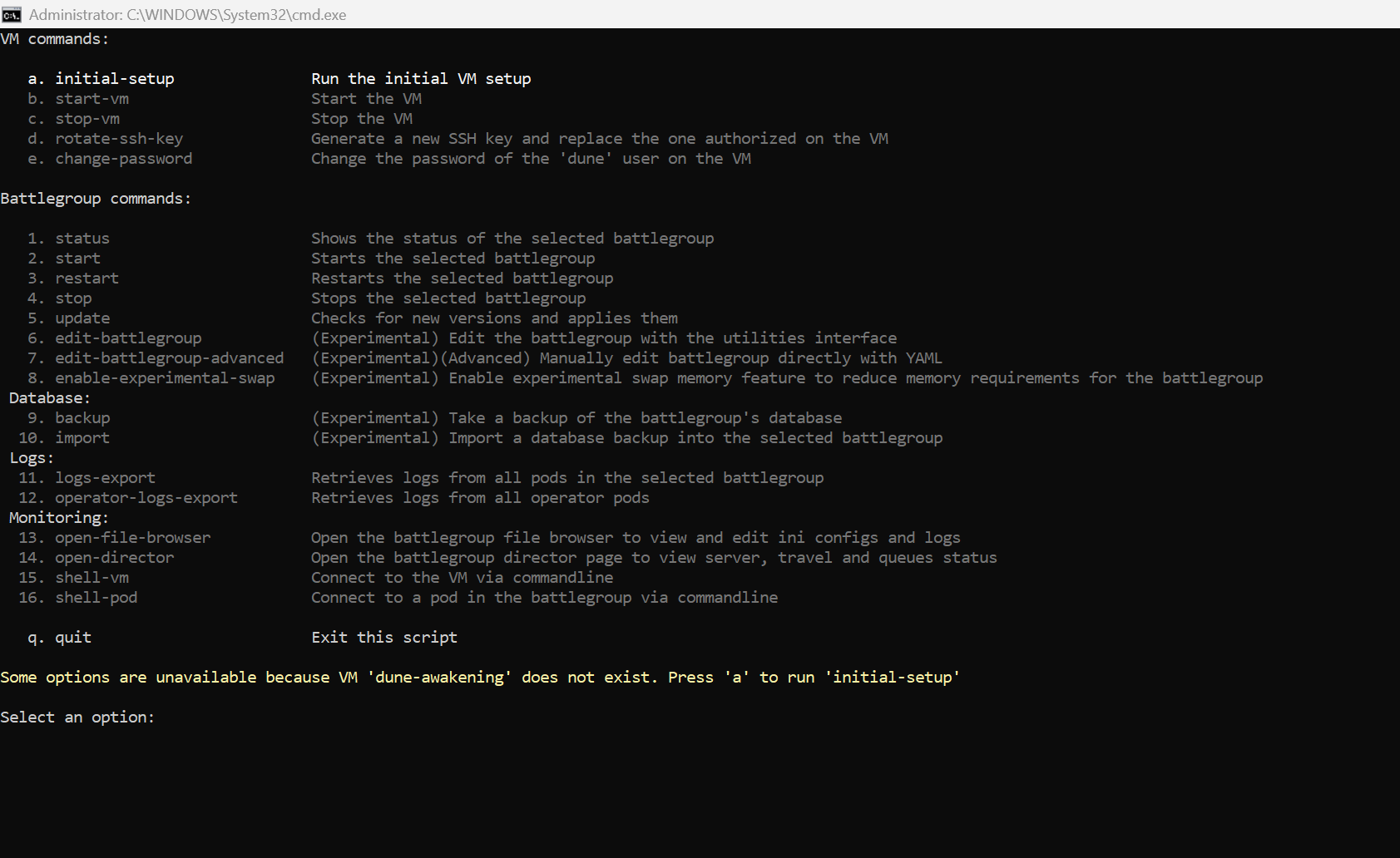
Initial-setup will guide you through a series of choices in order to prepare the VM’s network and resources as needed, and setting up the battlegroup in kubernetes
After the setup, the VM should be running and you will have access to the remaining options:
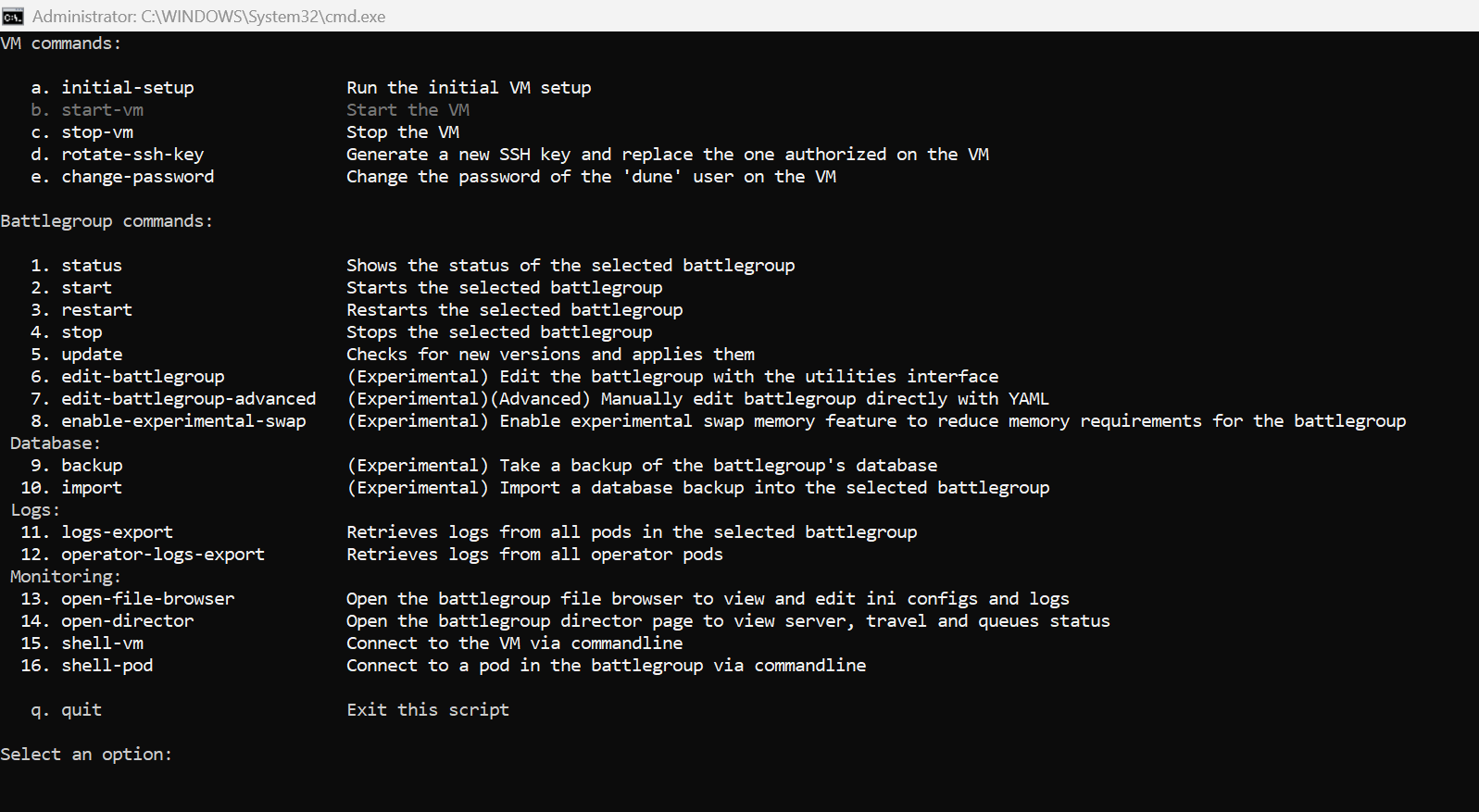
In the VM Commands segment there are options for starting/stopping the VM, along with an option to change the default password of the dune user in the VM, and to rotate the ssh key that was generated during the setup with a new one
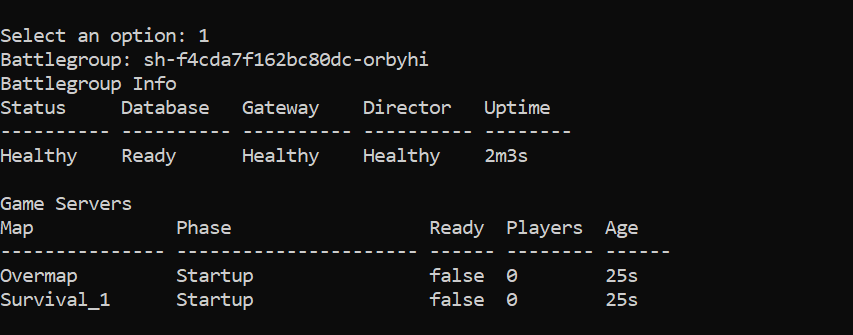
In the Battlegroup Commands segment there are options for starting/stopping the battlegroup, updating it to the latest available version and monitoring its health. Status will display the information of any currently running servers along with the health of the surrounding services
Editing the Battlegroup
In order to make changes to the battlegroup setup, for changing for example the amount of servers of each map, the resources they take, their arguments among other things, the changes need to happen on the Battlegroup kubernetes resource. Since this requires a very specific syntax we have made a Battlegroup Editor interface that allows updating the Battlegroup resource easily. When selecting “Edit Battlegroup” this editor will open:
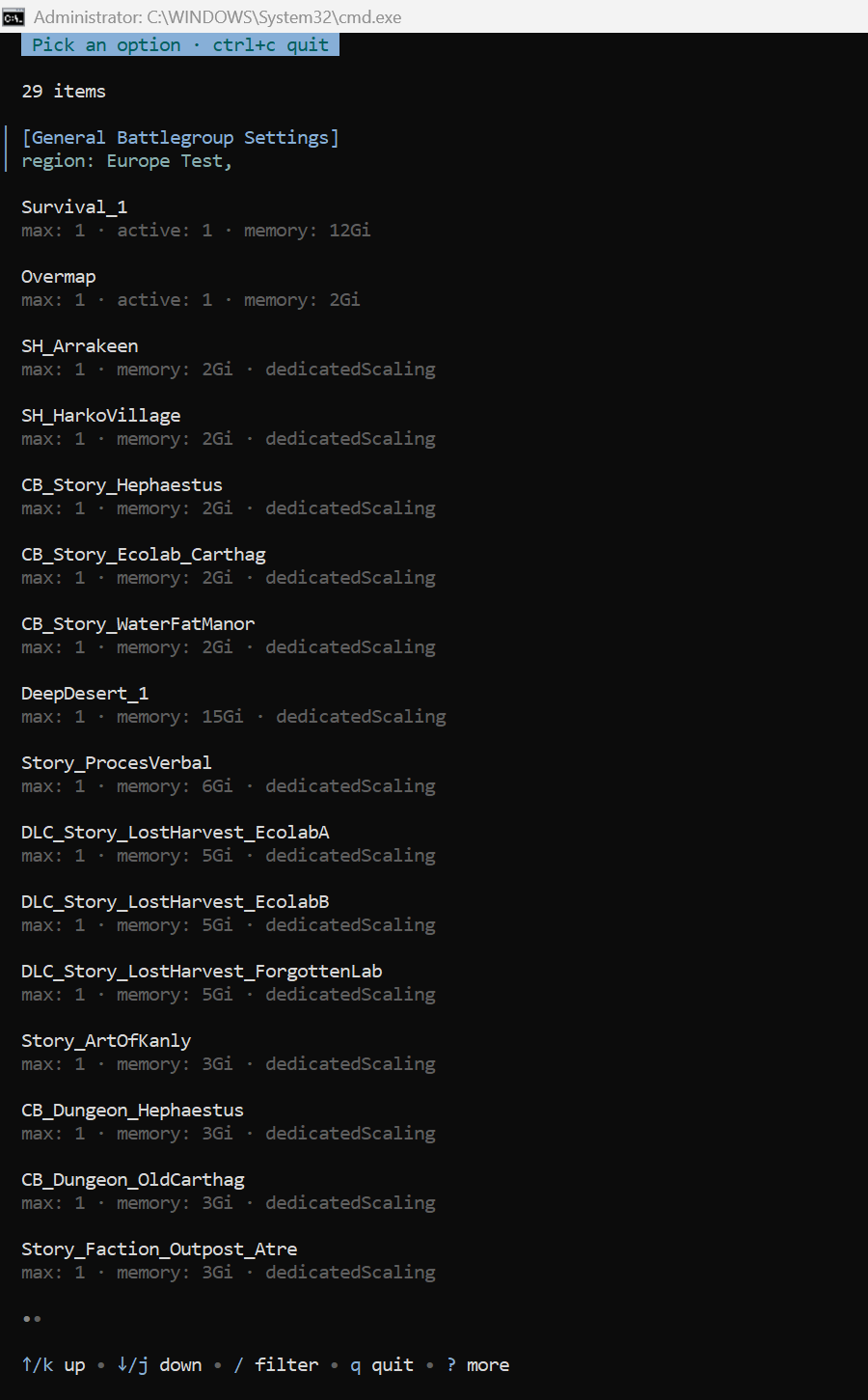
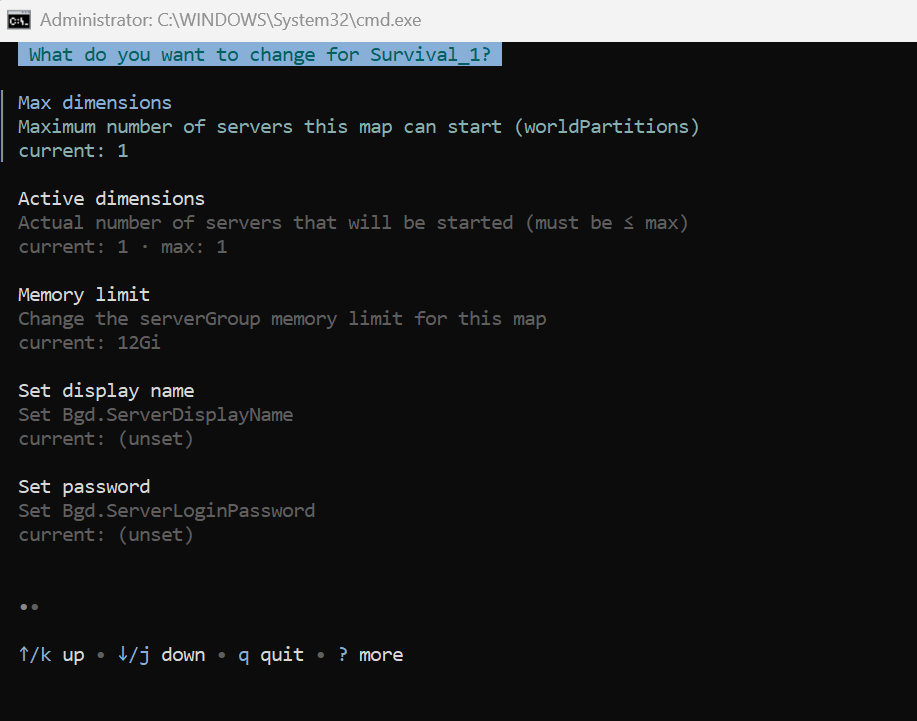
Entering a map will give you all the different settings you can manipulate, their current and modified values. This allows you to make changes to each specific server (dimension) in a map, or to apply changes to all of them at once
There are also options for taking a backup of the battlegroup spec and loading it, so you can experiment with different settings
There’s also an advanced option for editing the battlegroup directly in yaml. This will open the default editor (vi) and will allow you to change any setting in the battlegroup spec. If a change isn’t valid the resource will notify you, but there are cases where the battlegroup can break with a bad modification so care must be taken
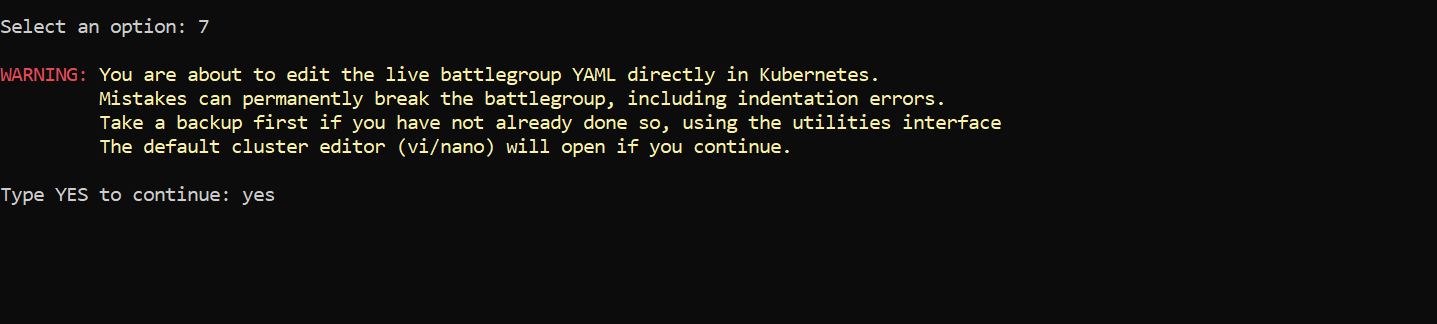
This way settings, configurations and arguments can be modified for all servers and service components of the battlegroup, for example game servers, the battlegroup director or the RabbitMQ queues
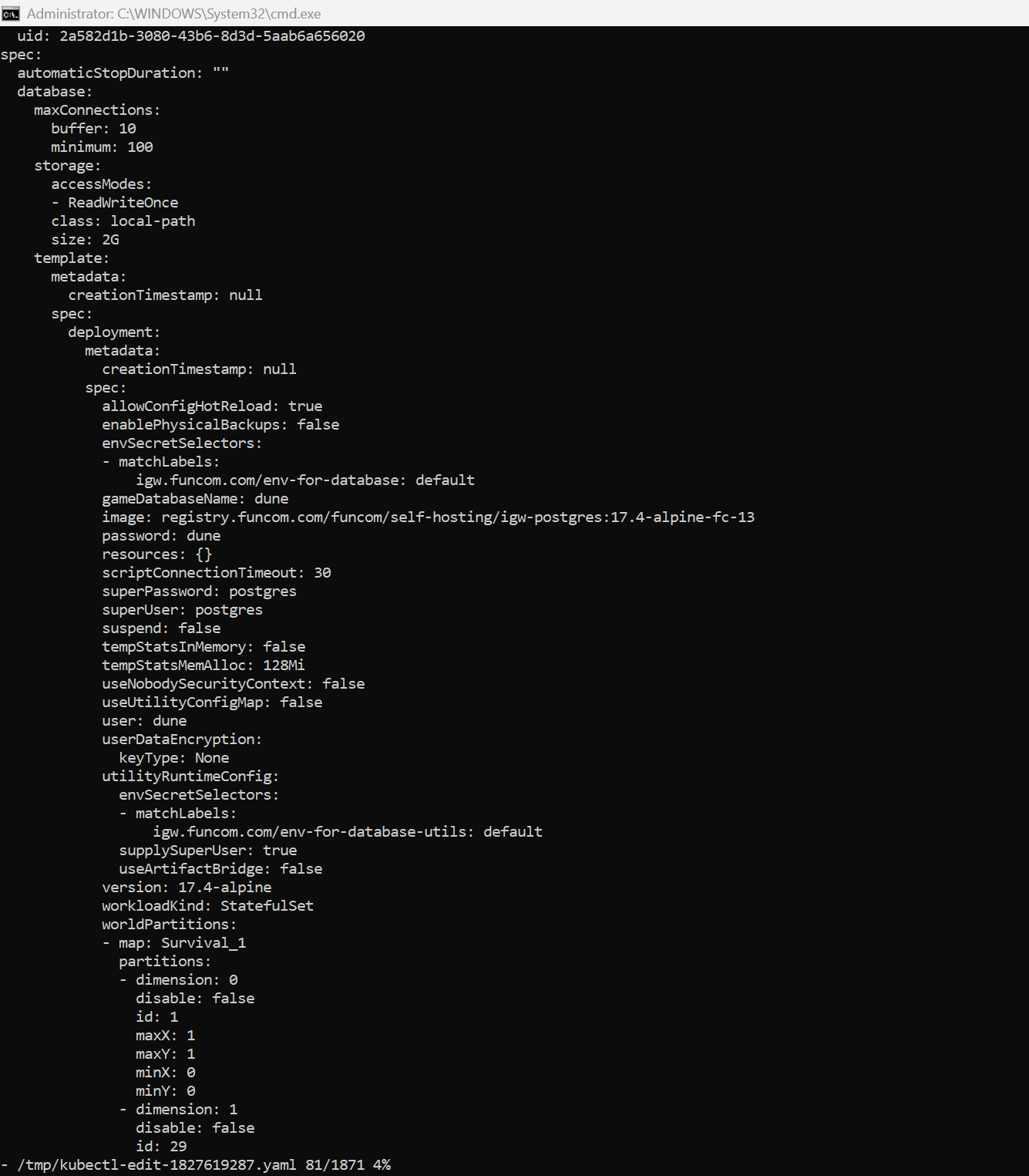
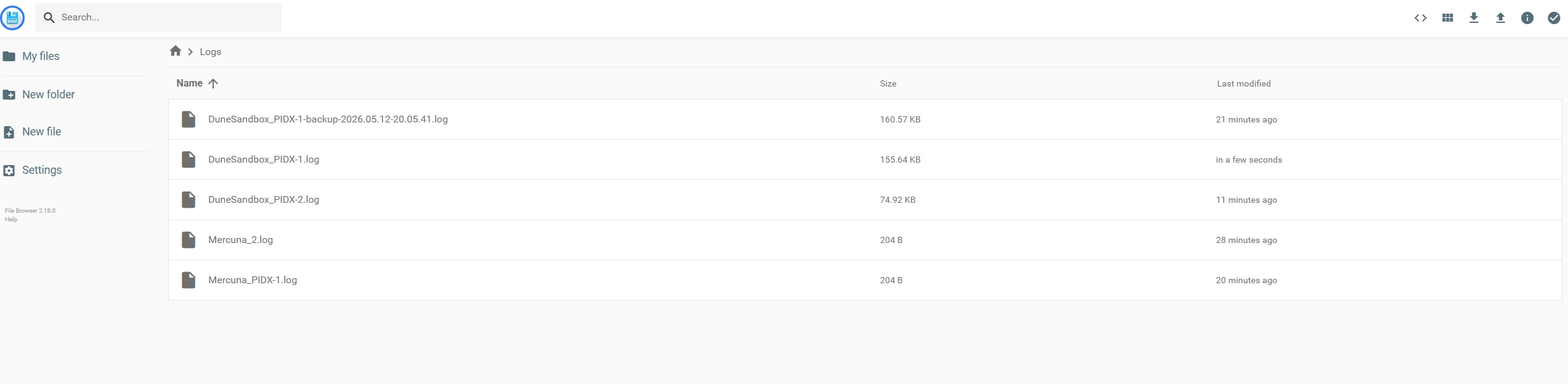
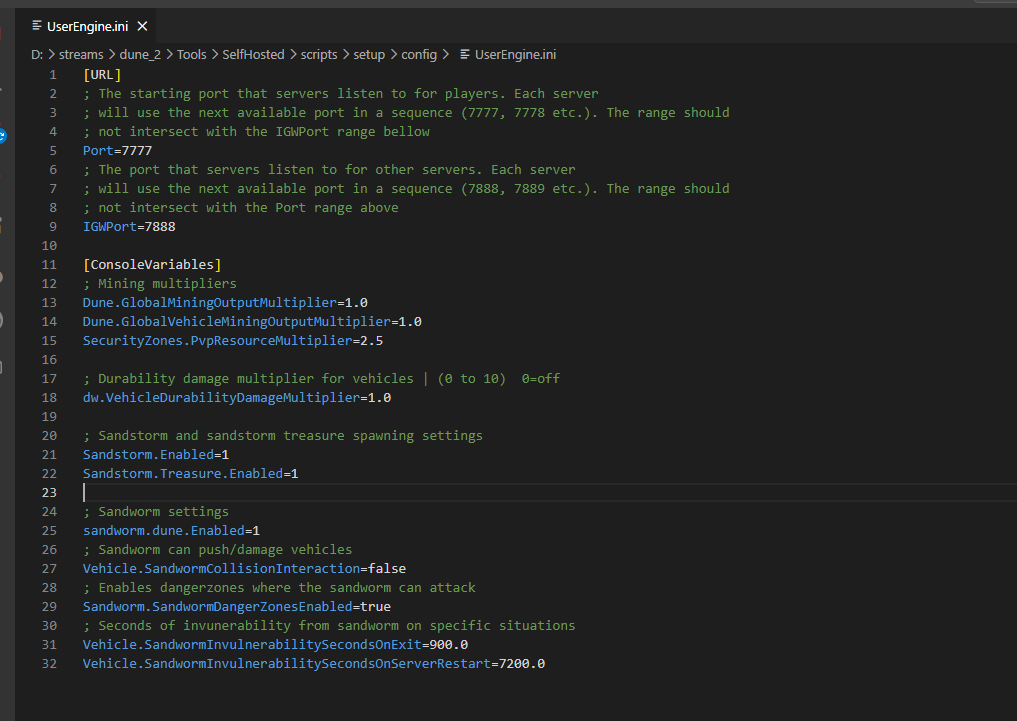
The other way for manipulating the battlegroup behavior is through config files. If you open the File Browser you will see a folder with logs for each server, and also a UserSettings folder with prefilled configuration files that affect the behavior of the game
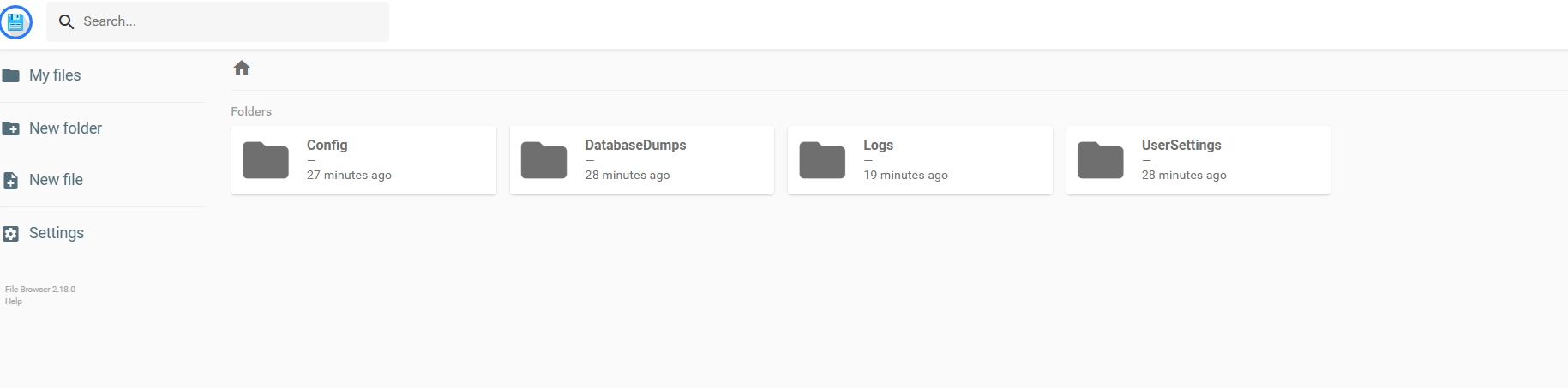
Changes to the configuration files get applied to all servers in a battlegroup. If settings need to be applied on a per-server basis, that should happen on battlegroup spec as mentioned above

Take extra note of the Port and IGWPort options. These allow you to set different starting ports for the game servers listening for clients. Changing this will require you to adjust your port forwarding settings accordingly.
Security Disclaimer: to reduce the risk of virtual machine corruption or other attacks, make sure to only expose the ports that are strictly required for the servers to operate.
Monitoring
Along with the logs of the file browser, there are options for fetching all logs from each battlegroup component and operator, along with their pod description that shows their status.
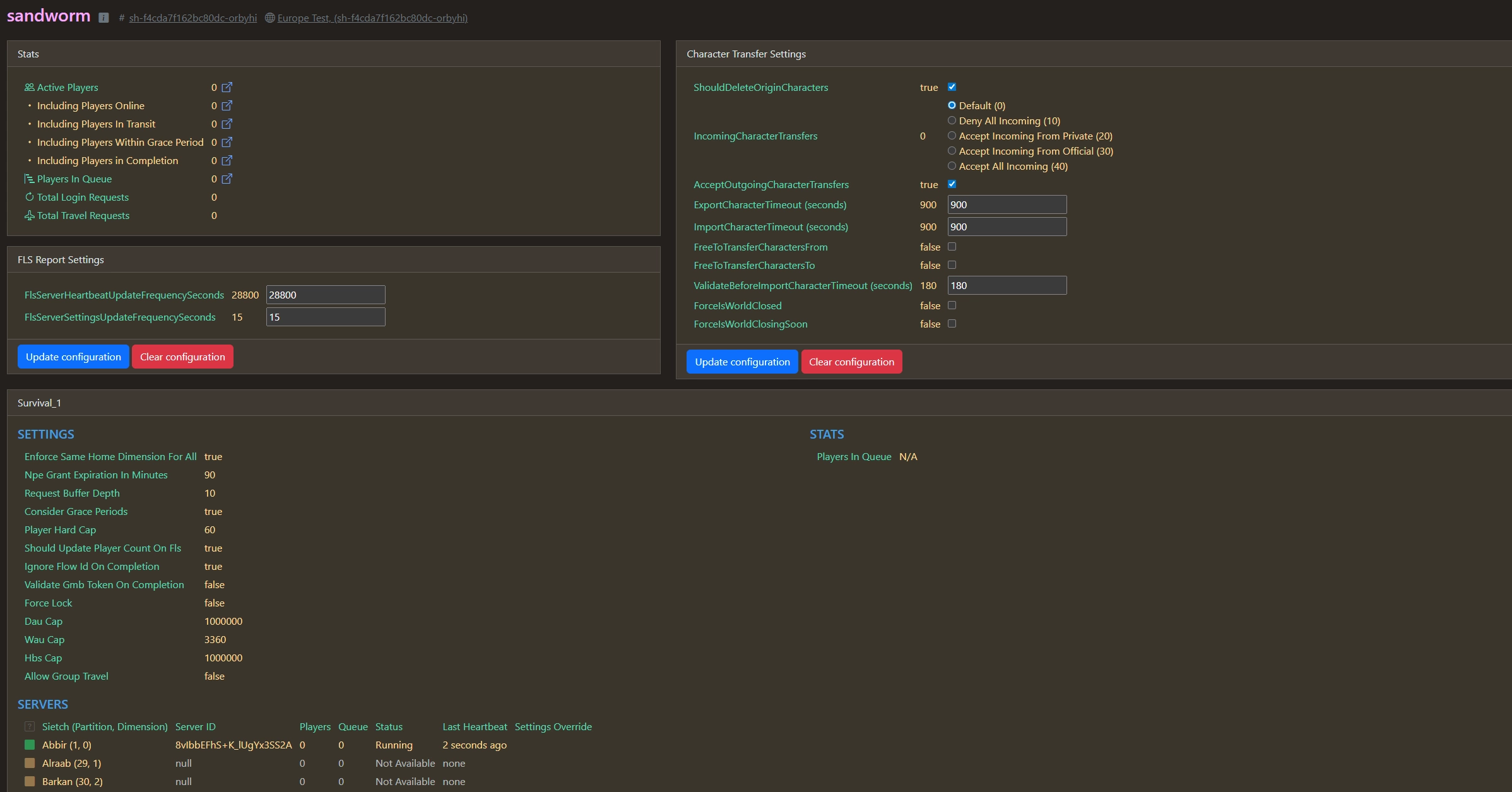
There’s an option for opening the web interface of the Battlegroup Director, there you can monitor travel queues along with the status of different servers. Settings modified in this page do not persist and instead they need to be applied on the battlegroup spec in kubernetes like mentioned above
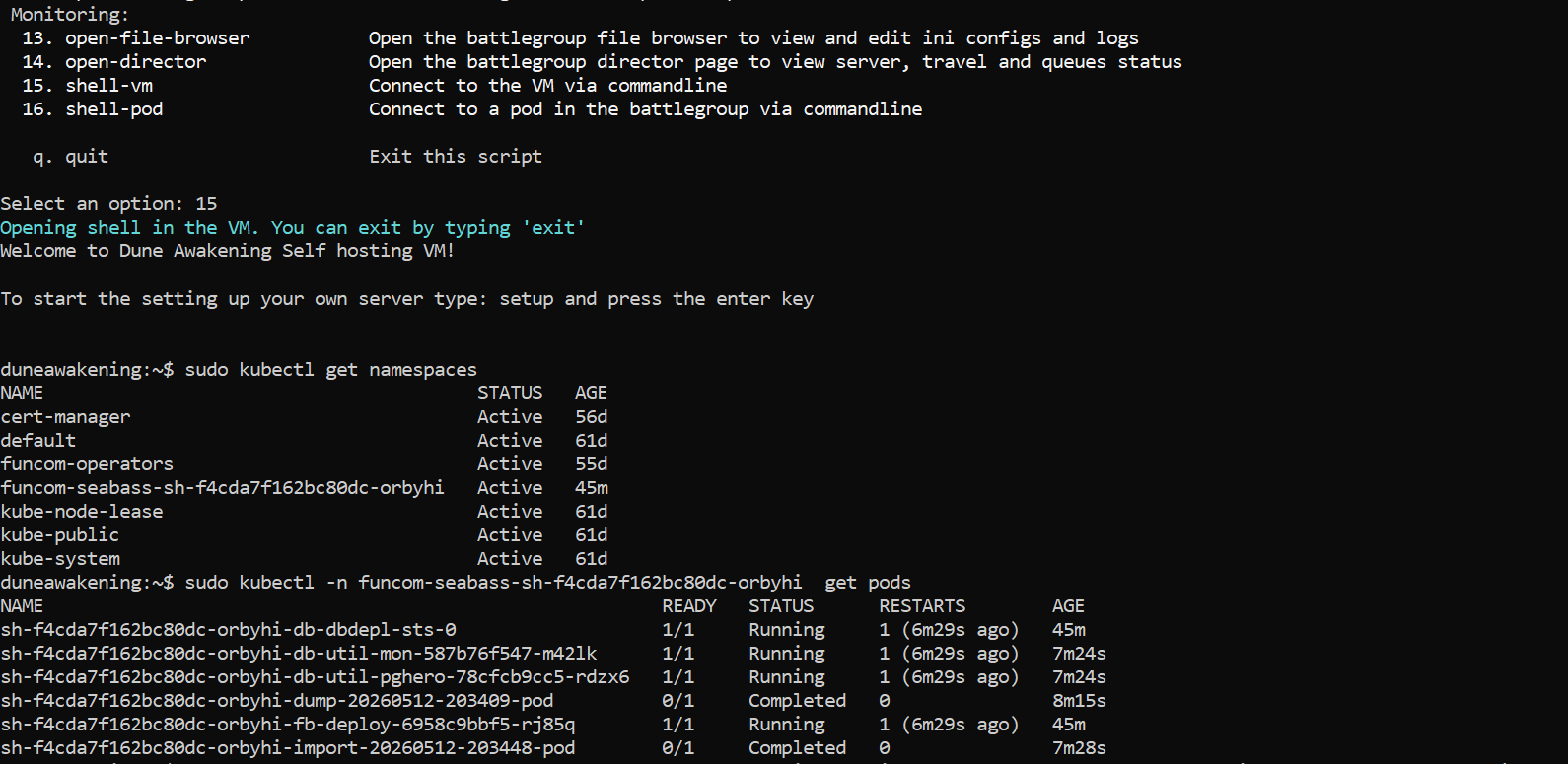
There are options to open a shell to the VM itself, which will allow the dune user to run kubectl commands to monitor the status of pods in greater detail. For example sudo kubectl -A get pods will show the status of every pod in the cluster, or a specific battlegroup’s pods can be targeted with its namespace
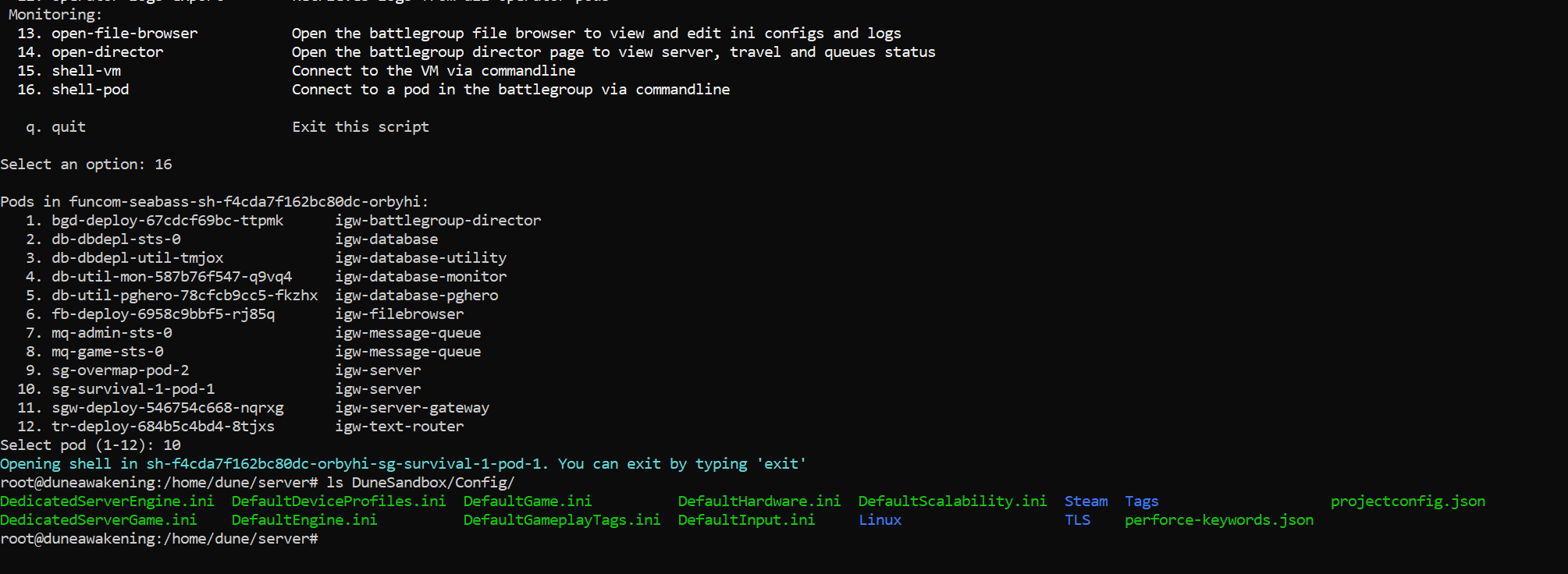
There’s also an option to shell into any pod that’s currently running, allowing you to see its status, logs and resource usage from within the pod
Database Backups
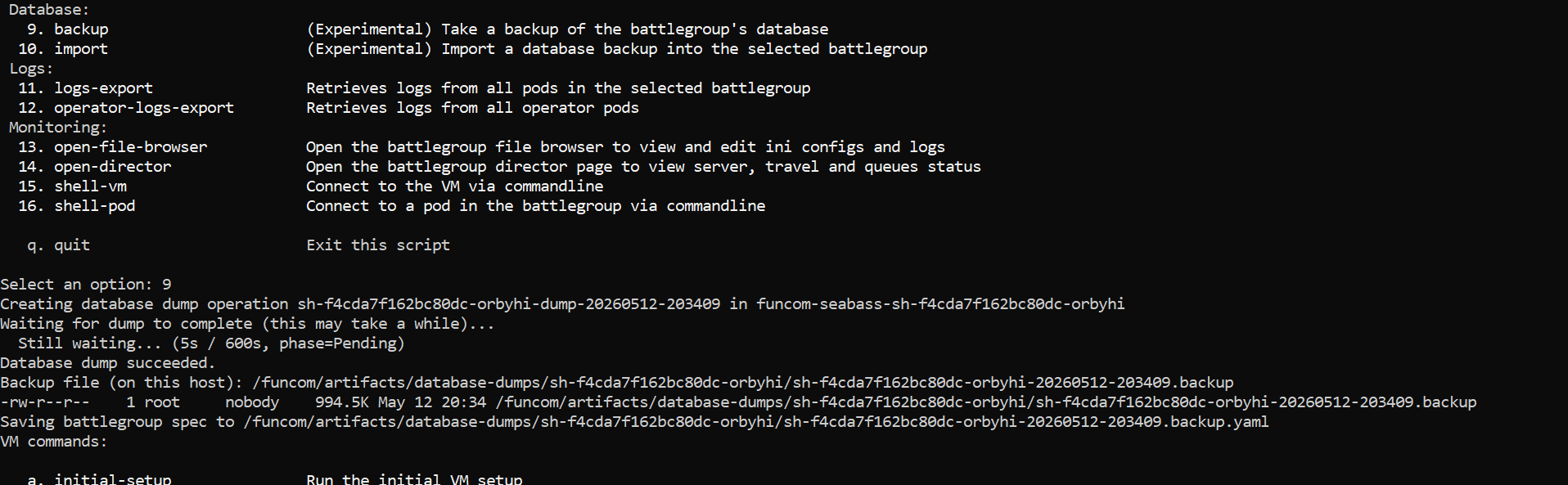
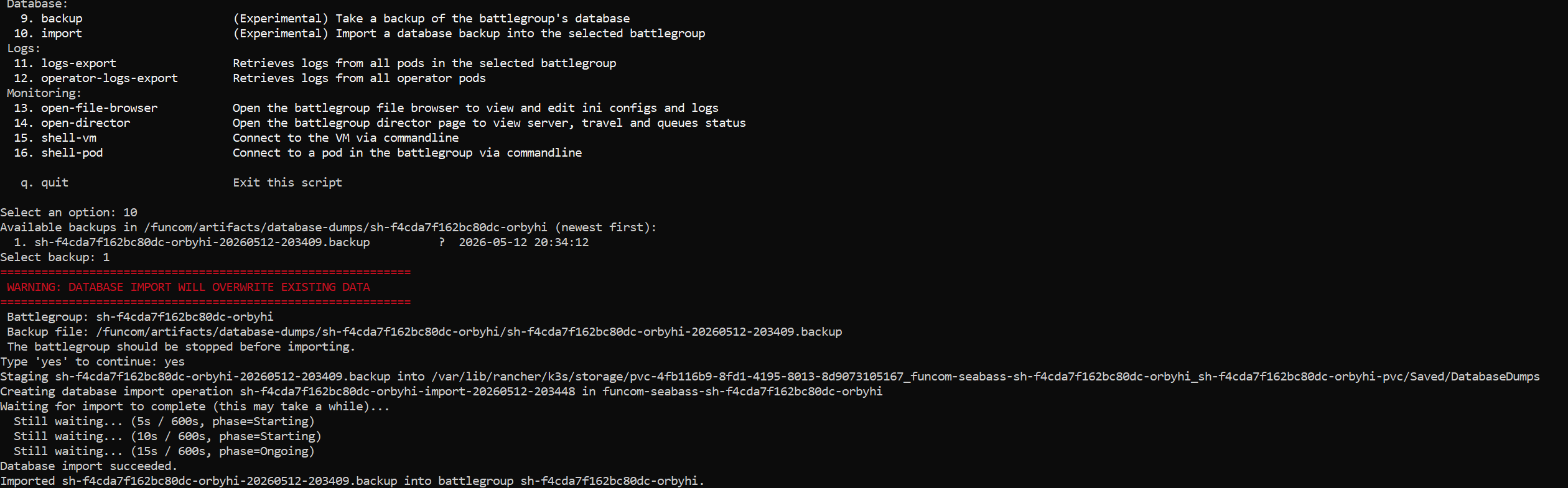
There are options for taking backups of the battlegroup’s database and for importing an existing backup. This should preferably be done while the battlegroup is stopped as it can significantly affect the performance of the VM and battlegroup
Swap Memory
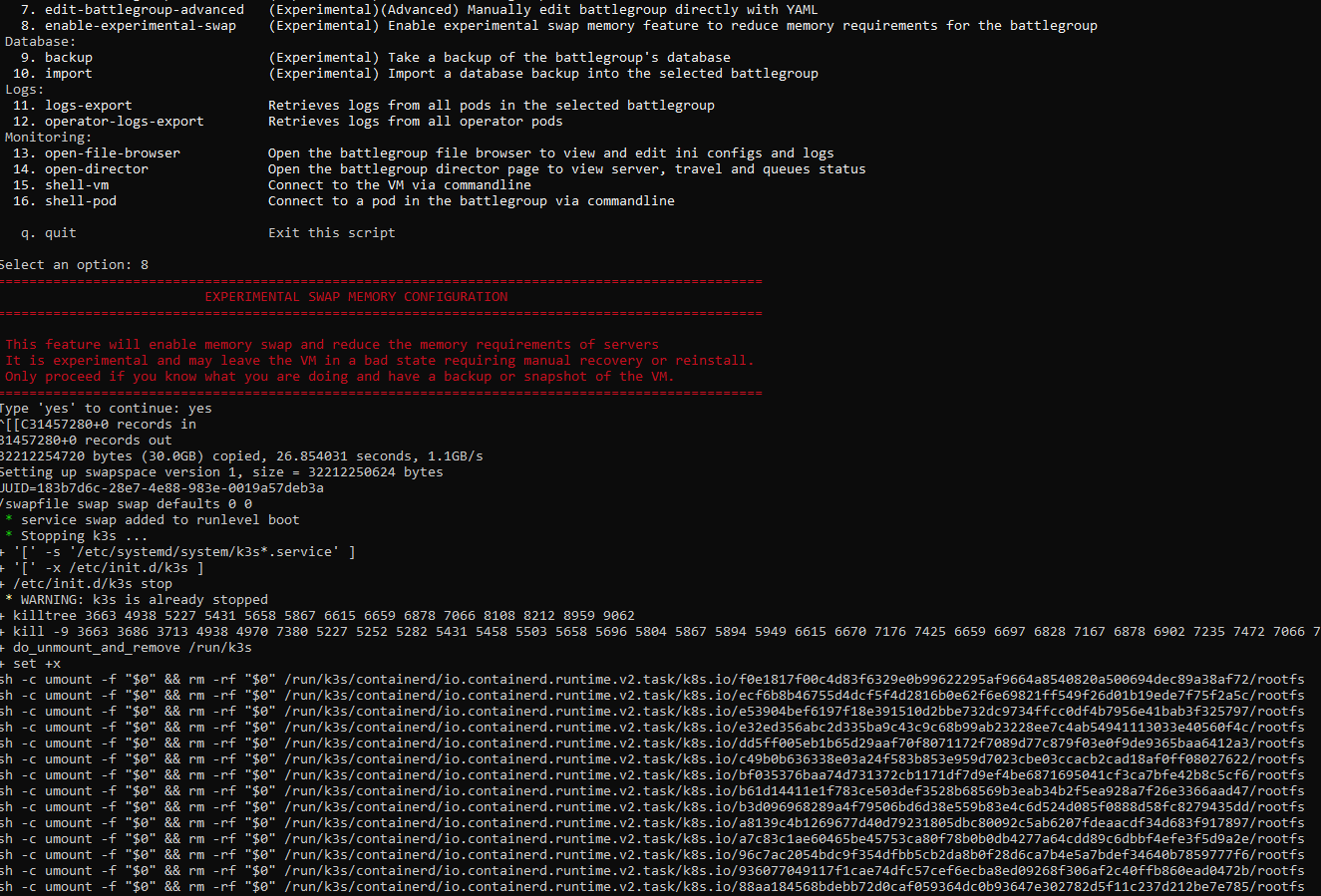
There’s an experimental swap memory option which will significantly reduce the memory requirements of maps. Enabling it will allow each game server to use swap memory on the disk, allowing you to host game servers with less than half the original requirements. After the feature is activated all servers in the battlegroup will automatically drop their requirements to match this. During the initial setup if an option bellow 20GB of memory is used, it will be suggested to enable Swap Memory for a better experience